YOUR DEVICES. ONE CONNECTION.
Your network,
without the distance.
Connect devices across locations. Reach a remote network, bring a service closer, or connect your devices directly with Zeno.
macOS · Linux · Windows
Different places. A direct connection.
PROXY + FORWARDING + NETWORKINGONE CONNECTION. MORE POSSIBILITIES.
Bring the other side closer.
A different way out.
Route application traffic through a remote device with Proxy. SOCKS5 is one way for compatible applications to access it.
Explore Proxy ↗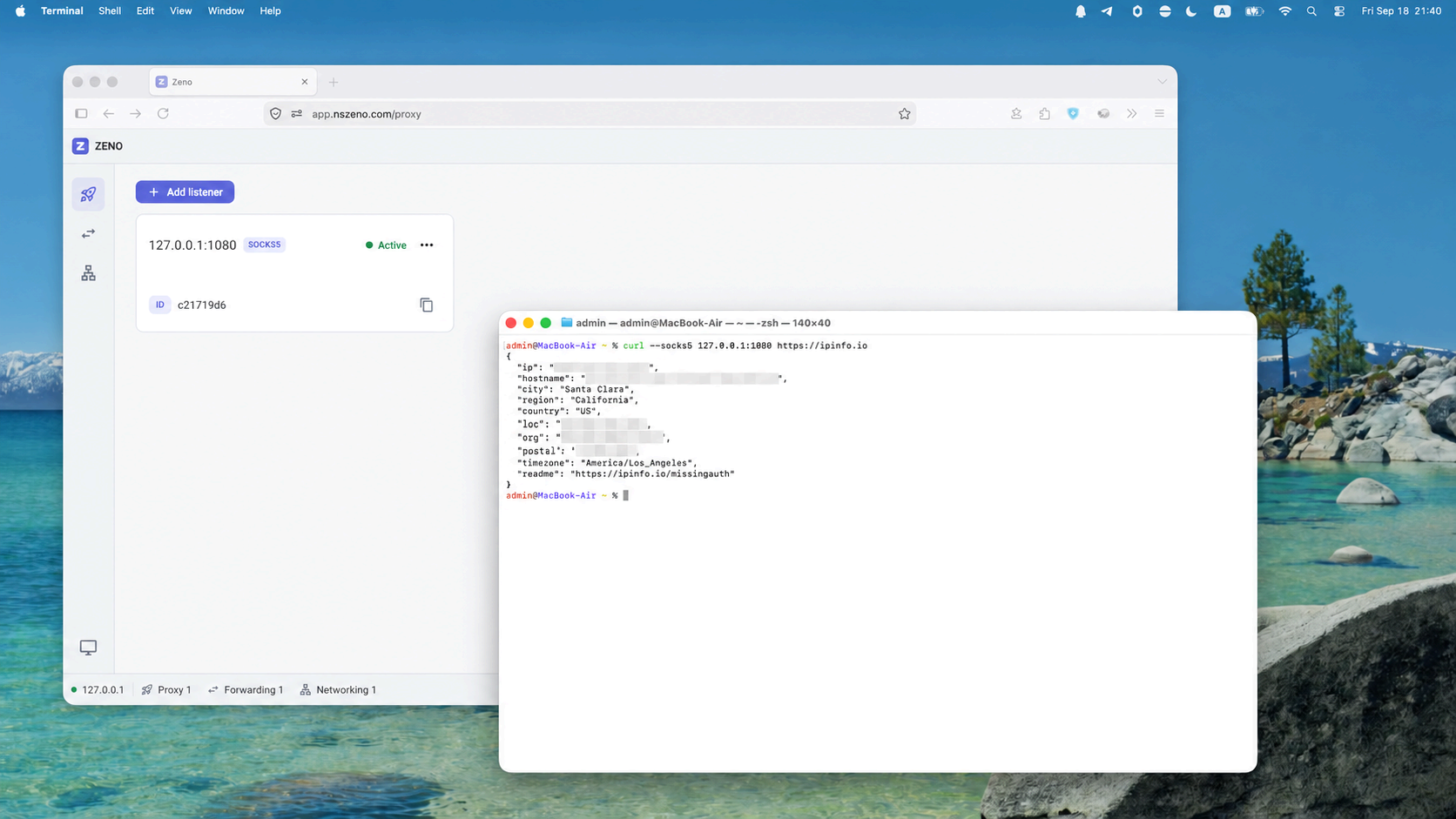
Remote service. Local address.
Map a TCP or UDP service reachable by your remote device to a listening address on your local device.
Explore port forwarding ↗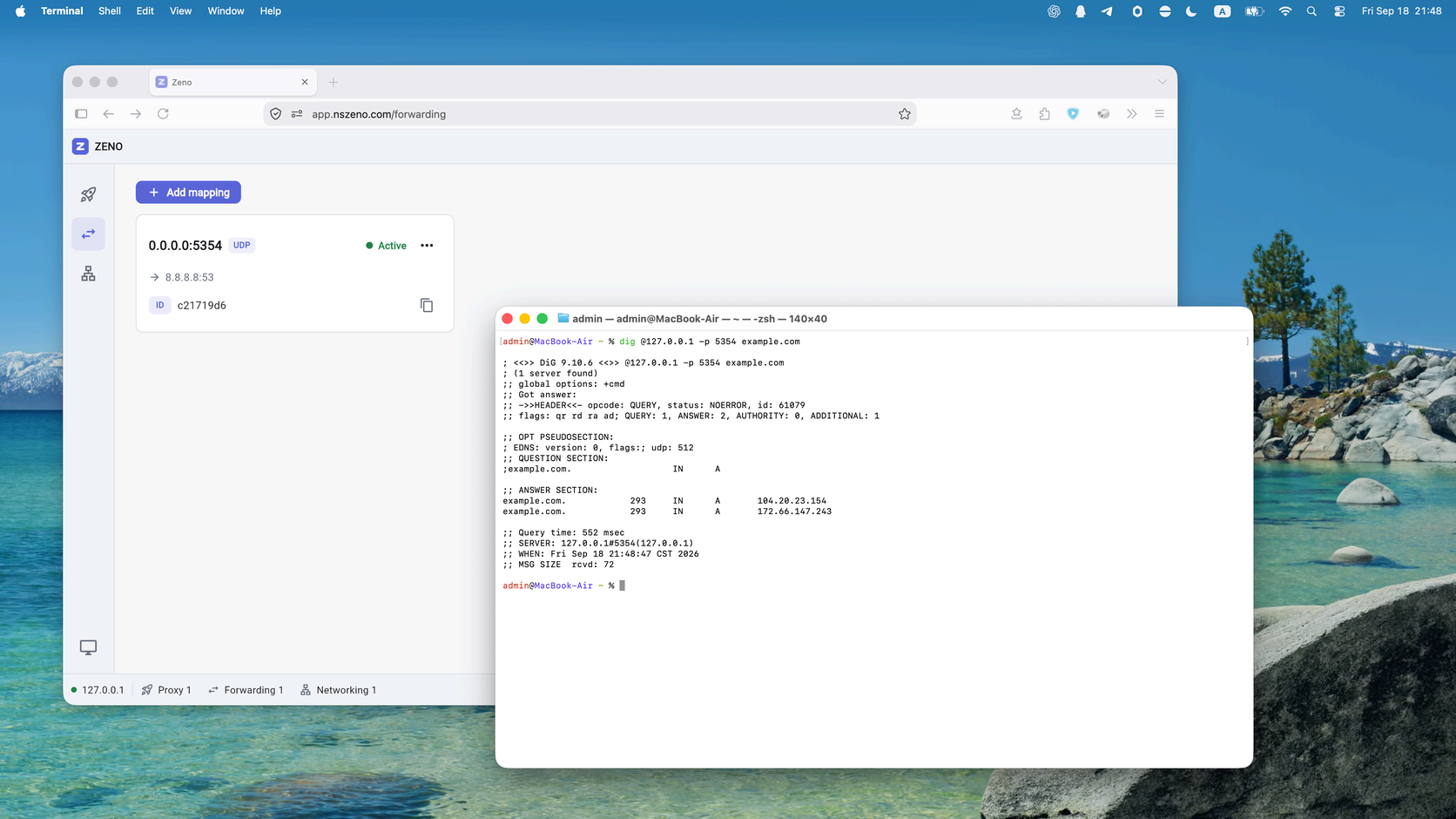
Make distance disappear.
Connect remote devices and LANs through a virtual network. Once a P2P connection is established, traffic flows directly to the peer.
Explore private networking ↗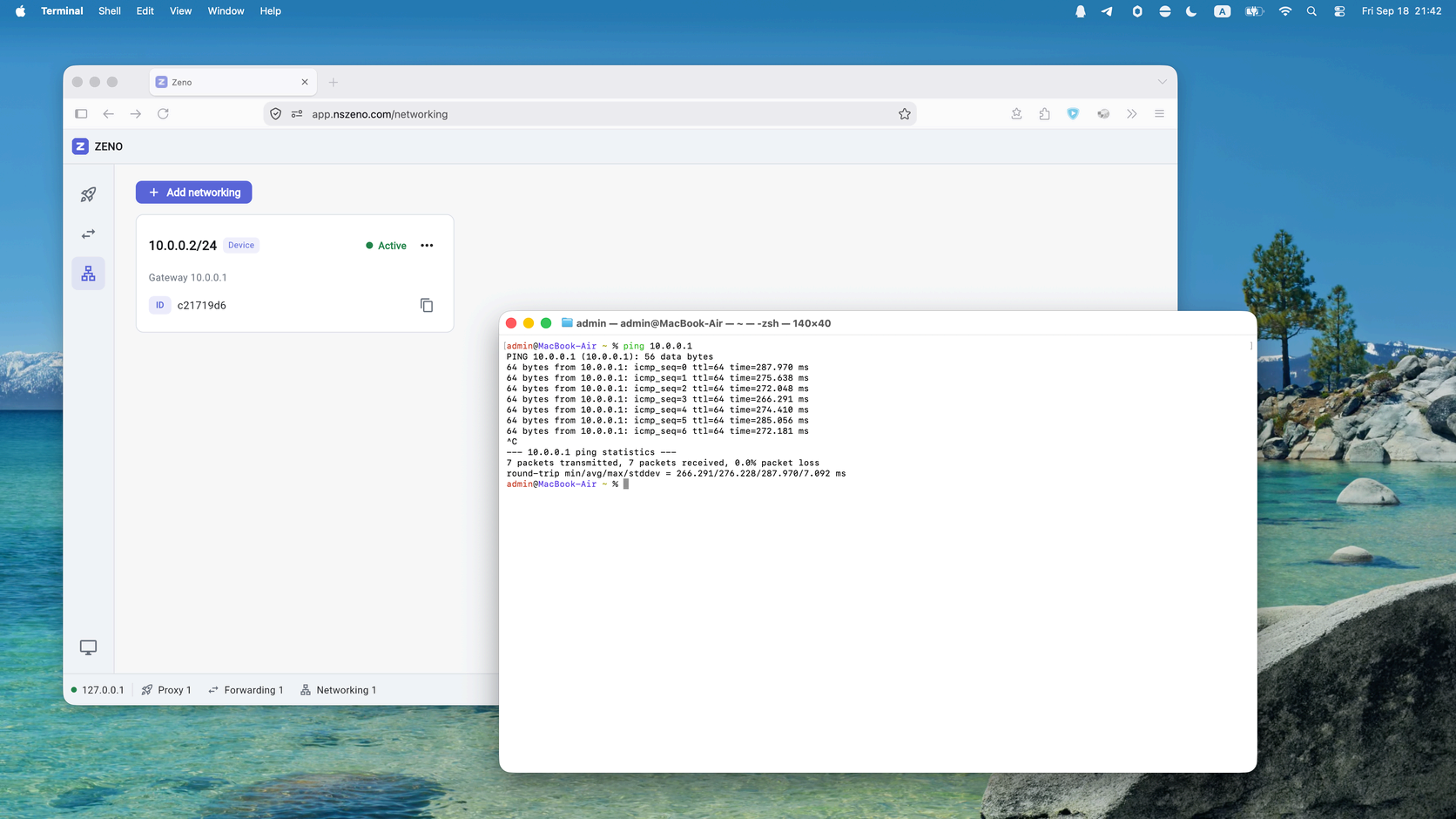
FROM INSTALL TO CONNECTED
Start with two devices.
Install Zeno Daemon on your local and remote devices. Then open the dashboard and use the remote device’s Peer ID to configure a connection.
- 01Install on both devices
- 02Copy the remote Peer ID
- 03Configure in the dashboard
curl -fsSL https://dl.nszeno.com/daemon/macos-installer | bashcurl -fsSL https://dl.nszeno.com/daemon/linux-installer | bashirm https://dl.nszeno.com/daemon/windows-installer | iexRun installation commands in your terminal. Administrator privileges are required for startup services, virtual network interfaces, and routes. On Windows, run PowerShell as administrator.
THE PRACTICAL PART
Less guessing. More connecting.
Step-by-step guides for the connection you want to make.
Install Zeno and make your first connection
Install the daemon on two devices and connect them using the web dashboard.
Read guide ↗02Use Proxy to access a remote network
Use Proxy to route application traffic through a remote peer, with SOCKS5 as the local access method.
Read guide ↗03Forward a remote TCP or UDP service to a local port
Access a service reachable from a remote peer through a listener on your own device.
Read guide ↗04Connect devices with a private virtual network
Configure a gateway and a device to connect remote devices and LANs.
Read guide ↗A few things to know.
What do I need to get started?+
Install Zeno Daemon on both devices and use their Peer IDs to configure proxy, forwarding, or private networking in the dashboard.
What is the difference between Proxy and port forwarding?+
Proxy routes application traffic through a remote peer; SOCKS5 is one local access method. Port forwarding maps a specific remote TCP or UDP service to a local listener.
Where do I manage connections?+
Use app.nszeno.com to manage daemon hosts, proxy listeners, forwarding mappings, and virtual network configurations.
Does the dashboard support Chinese?+
Yes. Choose English, Simplified Chinese, or the system language from the language menu in the dashboard title bar.
Your next connection
starts here.
Install Zeno on your devices. Bring your networks together.
Open dashboard ↗